
How to Print a Wide Data Table Without Cutting Off Column Headings
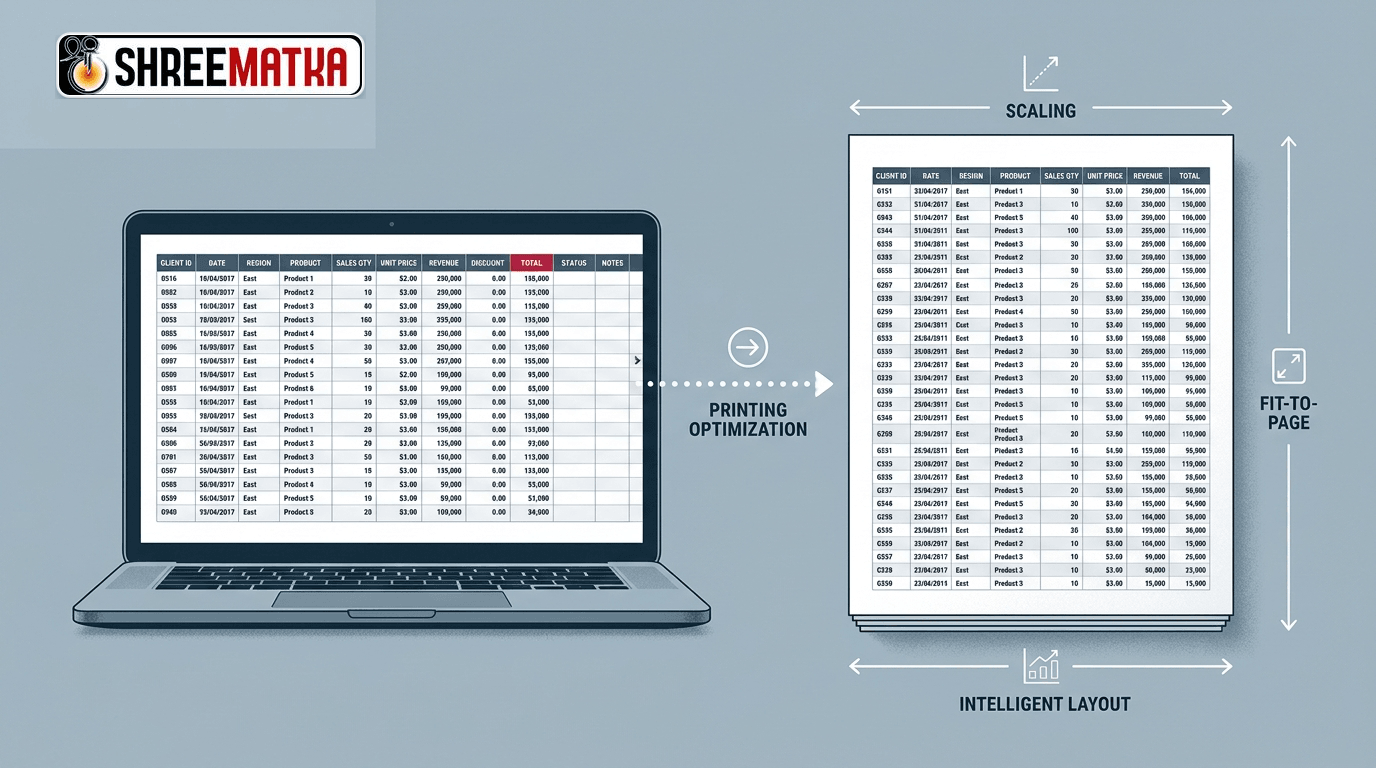
Whether you are archiving statistical records for offline research, preparing mathematical reports, or keeping physical reference logs of weekly market results, printing web pages is a routine task. However, anyone who has ever clicked "Print" on an expansive web chart knows the frustration: the rightmost columns are truncated into oblivion, values bleed off the physical sheet margin, and subsequent pages appear as unlabelled, floating digits. Knowing how to print wide data table layouts cleanly requires understanding how physical paper geometry interacts with digital web CSS.
Web browsers are engineered for continuous, flexible digital screens that scroll infinitely in any direction. Standard printer paper (such as A4 or Letter), by contrast, has immutable physical boundaries: an A4 sheet is strictly 210 millimeters wide. When an eight-column data grid spanning 1200 pixels is forced onto an 800-pixel print canvas without proper scaling, the browser simply clips whatever fails to fit.
By configuring browser print dialog settings, switching page orientation, adjusting scaling ratios, and understanding how modern CSS print media queries work, you can generate pristine physical prints and exported PDFs that preserve every column heading and data cell.
1. Why Wide Web Tables Get Clipped in Print
To resolve print clipping, you must identify why default browser printing breaks wide grids:
[Web Browser Screen: 1200px Wide]
┌─────────┬─────────┬─────────┬─────────┬─────────┬─────────┬─────────┐
│ Date    │ Market  │ Open    │ Jodi    │ Close   │ Status  │ Notes   │
└─────────┴─────────┴─────────┴─────────┴─────────┴─────────┴─────────┘
                                   │
                    (Default Portrait Print Canvas: ~750px)
                                   ▼
┌─────────┬─────────┬─────────┬─────────┐ █  CLIPPED OUT OF PRINT
│ Date    │ Market  │ Open    │ Jodi    │ █  [Close, Status, Notes lost!]
└─────────┴─────────┴─────────┴─────────┘ █
- Default Portrait Mode: Web browsers default to Portrait orientation (taller than wide). Wide tables with more than four or five columns exceed standard portrait printable widths.
- The
overflow-x: autoTrap: On modern mobile-friendly sites like the ShreeMatka charts index, wide tables are wrapped in responsive horizontal scroll containers (overflow-x: auto) so mobile users can swipe horizontally. In standard print mode, however, a printer cannot swipe. If the website lacks dedicated print styles, the printer engine captures only the initial visible window and discards the rest. - Missing Repeating Headers: On physical multi-page prints, table headers (
<thead>) often appear only on Page 1. When Page 2 begins, the reader sees rows of raw numbers without knowing which column represents an opening panel or a closing figure.
2. The Five-Step Browser Print Configuration
Whenever you need to print a wide tabular record from Google Chrome, Microsoft Edge, Mozilla Firefox, or Safari, apply this systematic configuration sequence before pressing the final print button:
Step 1: Open and Inspect the Print Preview (Ctrl + P or Cmd + P)
Never send a web table directly to a physical printer without examining the visual preview. The preview screen accurately renders exactly how the browser intends to slice the content across pages.
Step 2: Change Layout Orientation to "Landscape"
In your browser's print dialog settings:
- Locate the Layout or Orientation setting.
- Switch from Portrait to Landscape.
- An A4 sheet in Landscape mode provides 297mm of horizontal width compared to 210mm in Portrait—instantly granting over 41% additional horizontal breathing room for extra columns.
Step 3: Adjust Custom Scaling (The 75%–85% Rule)
If the rightmost columns still graze the margin in Landscape mode:
- Look for the Scale setting in the print dialog (often under "More settings").
- Change from "Default" to "Custom".
- Reduce the scale percentage down to 80% or 75%.
- Watch the preview refresh. Scaling reduces font sizes and cell padding proportionately, pulling the clipped columns back into printable canvas space while keeping numeric digits completely sharp and legible.
Step 4: Set Margins to "Minimum"
Default browser print margins often reserve 0.5 to 0.75 inches of blank whitespace on all four edges. Changing Margins to "Minimum" or "Custom (0.25 in)" expands the usable printable table surface without sacrificing binding space.
Step 5: Disable Headers and Footers
Uncheck the "Headers and footers" checkbox in the print settings. This removes automated browser URL text, page titles, and date stamps from the top and bottom sheet margins, freeing vertical room and preventing layout crowding.
3. Recommended Print Settings Summary
| Print Dialog Setting | Default Setting | Recommended Setting for Wide Data Tables |
|---|---|---|
| Destination | Physical Printer | Save as PDF (first verify digital layout, then print). |
| Orientation | Portrait | Landscape (essential for 5+ columns). |
| Paper Size | A4 or Letter | A4 or Legal (Legal provides extra horizontal width). |
| Scale | 100% / Default | Custom: 70% to 85% (scale until right border is visible). |
| Margins | Default (~18mm) | Minimum (~5mm). |
| Options | Print Backgrounds | Enabled (preserves alternating row shading and borders). |
4. How Modern Web Engineering Supports Table Printing
Cleanly engineered informational portals implement dedicated CSS @media print rules to ensure tables format cleanly when users hit print.
Modern stylesheets incorporate the following technical rules:
@media print {
  /* 1. Expand responsive mobile containers so columns don't clip */
  .overflow-x-auto {
    overflow: visible !important;
  }

  /* 2. Force table headers to repeat at the top of every printed page */
  thead {
    display: table-header-group !important;
  }

  /* 3. Prevent individual rows from splitting awkwardly across page breaks */
  tr {
    page-break-inside: avoid !important;
  }

  /* 4. Hide non-printable navigation bars and buttons */
  header, nav, .action-buttons {
    display: none !important;
  }
}
When thead { display: table-header-group; } is active, you can print a thirty-page historical ledger and every single physical page will feature the column headings (Date, Market, Open, Jodi, Close) neatly aligned at the top.
5. Troubleshooting Stubborn Print Clipping
If a table remains clipped after switching to Landscape and scaling down to 70%:
- Check for Fixed-Width CSS Wrappers: Some external tables have hardcoded widths (
width: 1400px !important). If encountered, use your browser's Print-to-PDF tool with a larger paper size, such as A3 or Tabloid, to capture the complete width without distortion. - Copy to Spreadsheet First: If you need to manipulate the columns or adjust individual column widths, copy the table into Excel or Google Sheets. In spreadsheet software, you can manually select "Fit All Columns on One Page" under Page Setup.
- Verify Against the Source Policy: For archival purposes, always verify that your print capture includes the source URL and capture date as described in our platform's data sourcing policy.
Frequently Asked Questions
1. Why does my print preview cut off the right edge of a data chart?
This happens when a table designed for wide desktop monitors exceeds the horizontal width of standard printer paper in Portrait mode. Switching your print orientation to Landscape and adjusting the scale to 80% usually resolves the clipping immediately.
2. How do I make table column headers repeat on every printed page?
In well-coded web pages, table headers repeat automatically across pages via the CSS property thead { display: table-header-group; }. If a website lacks this property, saving the table as a spreadsheet or PDF and enabling "Repeat header rows" in spreadsheet print settings will ensure headers appear on every page.
3. Will scaling down a web table make the numbers blurry?
No. Web pages are rendered vectorially via HTML and CSS text fonts. Scaling down to 75% or 80% in the browser print dialog reduces font sizing smoothly without causing the pixelation or blurriness associated with resizing bitmap images.
4. Is it better to print directly to paper or export to PDF first?
Exporting to PDF first ("Save as PDF") is strongly recommended. Reviewing the generated PDF allows you to verify that all column headings and rows align properly before expending physical paper and printer ink.
Disclaimer
Visiting and browsing this website is strictly at your own risk. All information available here is for informational and entertainment purposes only and is based on number calculations. We are not associated or affiliated with any illegal Matka business. We make every effort to follow the rules and regulations of the regions from which the website is accessed. There is a chance the website may be banned in your area; if you continue to use it after that, you alone are responsible for any damage, loss or legal action that may follow. Satta Matka may be illegal in your jurisdiction — please be aware of and comply with your local laws. Gambling can be addictive; players must be 18 or older, and underage gambling is strictly prohibited. If you do not agree with this disclaimer, please leave the website immediately. Copying any content posted on this website is strictly prohibited.